The Angular version mismatch cache fix is a common challenge developers face when deploying new builds. Users often see old UI or broken functionality due to cached files like main.js or remoteEntry.js.
This issue becomes critical in microfrontend and production environments. In this guide, you’ll learn how to fix Angular cache mismatch issues using burst caching, versioning, and modern strategies.
📌 Table of Contents
- What is Angular cache mismatch
- Why version mismatch happens
- 7 proven fixes
- Burst caching explained
- Tools comparison
- Best practices
What is Angular Version Mismatch Cache Issue?
Angular apps are heavily cached by browsers and CDNs. When a new version is deployed:
- Old JS files remain cached
- New API expects updated code
- App breaks due to mismatch
This leads to inconsistent user experience.
⚠️ Why Cache Mismatch Happens
- Browser caching static assets
- CDN caching old builds
- No cache invalidation strategy
- Same file names (no hashing)
🚀 7 Proven Angular Version Mismatch Cache Fix Methods
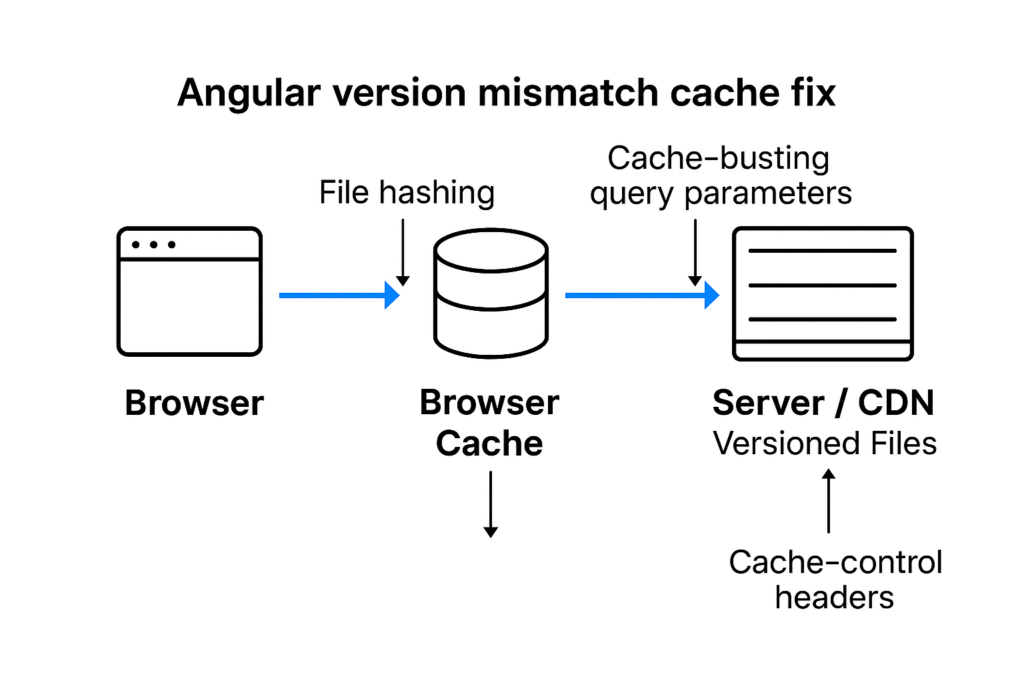
1. Use File Hashing (Best Practice)
Angular CLI supports hashing:
ng build --output-hashing=allBenefit:
- Unique file names
- Forces browser to load new files
2. Implement Burst Caching (Cache Busting)
Add version query param:
main.js?v=1.0.1
Or dynamic version:
const version = new Date().getTime();

script.src = `remoteEntry.js?v=${version}`;
Why it works:
- Breaks browser cache
- Forces fresh download
3. Cache-Control Headers
Set headers:
Cache-Control: no-cache, no-store, must-revalidate
Best for:
- Critical files like index.html
4. Use Service Worker Updates
If using Angular PWA:
- Enable update checks
- Force refresh when new version available
5. Version-Based Deployment Strategy
Use version folders:
/app/v1//app/v2/Benefit:
- No conflict between versions
6. Remote Entry Cache Busting (Microfrontend Fix)
If using module federation:
setRemoteUrlResolver(remoteName => {
return `${baseUrl}/remoteEntry.js?v=${appVersion}`;
});
Fixes:
- Stale remoteEntry issues
- Version mismatch across apps
7. Force Reload Strategy
window.location.reload(true);Use when version mismatch detected.
💥 What is Burst Caching?
Burst caching (cache busting) is a technique to:
- Invalidate old cache instantly
- Force browser to fetch latest assets
Common Methods:
- Query params (?v=123)
- File hashing
- Versioned URLs
📊 Tools Comparison for Cache Fix
| Tool / Method | Best For | Complexity | Effectiveness |
| File Hashing | Angular builds | Low | High |
| Query Params | Quick fixes | Low | Medium |
| CDN Cache Control | Production apps | Medium | High |
| Service Workers | PWA apps | Medium | High |
| Versioned Deploy | Enterprise apps | High | Very High |
| Module Federation | Microfrontends | High | Critical |
🧠 Best Strategy (Recommended)
Use a combination of:
- File hashing +
- Cache headers +
- Burst caching (query param)
This ensures zero mismatch issues.
⚡ Pro Tips for Developers
- Always version your deployments
- Avoid caching index.html
- Use CI/CD for version automation
- Monitor cache issues in production
📈 Future Approach
Modern apps are moving toward:
- Immutable deployments
- CDN-based versioning
- Edge caching strategies
✅ Conclusion
The Angular version mismatch cache fix is essential for stable deployments. By using burst caching, hashing, and versioning strategies, you can eliminate cache-related issues completely.
Start implementing these fixes today to ensure smooth user experience 🚀
❓ FAQs
What causes Angular version mismatch?
Cached old files conflicting with new deployment.
What is the best fix?
File hashing + cache busting.
Does Angular support cache busting?
Yes, via output hashing and service workers.
Is burst caching effective?
Yes, it instantly invalidates old cache.
🔥 Final Thoughts
Cache issues can break your production app. Fixing them with the right strategy ensures reliability and performance in modern Angular applications.
This article provides clear idea in favor of the new users of blogging,
that really how to do blogging.
thanks if you wanna our services then let me know
Heya i am for the first time here. I came across this board and I find It truly useful & it helped me out much.
I hope to give something back and help others like you helped me.